
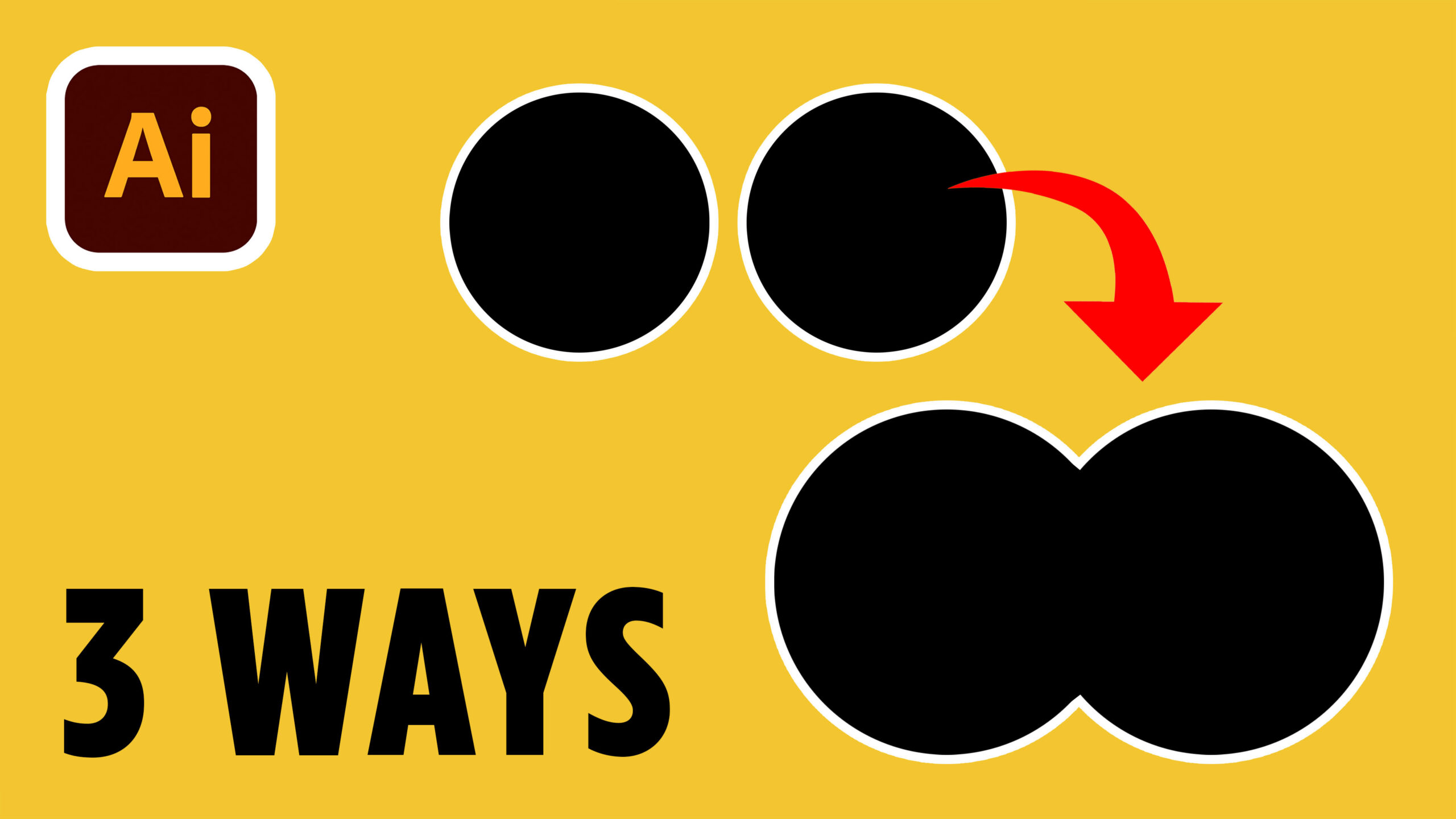
Have you ever drawn two shapes in Adobe Illustrator and wanted to turn them into one? It’s a common beginner task, whether you’re practicing icons, building a logo symbol, or experimenting with vector artwork.
If you want to follow along, you can start a 7-day Adobe Creative Cloud trial here: https://adobe.prf.hn/click/camref:1101lKN6K
In this quick lesson, we’ll merge shapes in Illustrator using three straightforward approaches.
Start with two overlapping circles
Open Illustrator and draw two circles. Move them so they overlap slightly. This simple setup makes it easy to see how the tools treat the shared area. You don’t need a complicated illustration to learn a fundamental skill.
Before choosing a tool, think about the result you want. Do the circles need to become a single editable shape? Or do they only need to stay together while you move and arrange your design? The answer changes which tool makes sense.
Method 1: Merge shapes in Illustrator with Pathfinder
Select the circles and choose Window > Pathfinder. The Pathfinder panel contains operations that can change the geometry of multiple selected objects. In the video, Kellie points to the Merge option and shows the resulting artwork as one shape that can be recolored.
Try the operation yourself, then click the result to inspect it. Depending on fills, stacking and resulting groups, the structure of the artwork can differ. If your actual goal is to create one continuous silhouette from the outer boundaries, the Pathfinder Unite command is also worth knowing.
Why use Pathfinder? It is a direct, repeatable choice when you already know what overall combination you want. For simple overlapping shapes, it can save you from manually drawing an entirely new outline.
Method 2: Combine shapes with the Shape Builder tool
The second option is the Shape Builder tool. Overlap your two circles, select them both, and choose Shape Builder from the left toolbar. Click and drag across the regions you want to join. Illustrator treats those areas as a new combined result.
Shape Builder is useful when you want to make the decision visually. Instead of picking a command and seeing what happens, you interact directly with the overlapping portions. That makes it easier to understand which regions are joining and gives you more control as designs become more complex.
For a beginner learning logo or icon design, this is a valuable habit: look at the positive and negative spaces before deciding what to keep. A tool is helpful, but understanding the final silhouette makes your artwork stronger.
Method 3: Group shapes when you want flexibility
The third technique in the short video is grouping. Select your circles, right-click and choose Group. The circles now behave as a unit when you move or transform them. You can ungroup them later and work with each shape separately.
Here is the key distinction: grouping does not truly merge the vector paths. It organizes separate objects into a single selectable group. That is not a problem; it is exactly what you want when the shapes should travel together but remain independently editable.
Grouping is especially practical while experimenting with layouts. Maybe you’re building a badge, arranging several simple icons, or trying different positions before committing to the final artwork. Keeping elements separate can make revisions easier.
Which tool should you choose?
Choose Pathfinder when a shape operation fits a result you already have in mind. Choose Shape Builder when you want to combine specific visible regions by dragging across them. Choose Group when you only need objects to stay together as a unit.
You don’t need to memorize every Illustrator feature at once. Practice on the same two circles and compare what happens when you recolor, move, ungroup, or directly select the result. The differences become much clearer when you see them.
Build confidence one small skill at a time
Learning to merge shapes in Illustrator may seem basic, but it leads to more confident icon creation, custom artwork and logo experimentation. The best progress often comes from repeating a small technique until you understand not just the clicks, but why you would choose that tool.
One useful habit is to keep a duplicate of your starting objects before combining them. That way, you can compare results and return to your original circles if you change your mind. In real projects, that small pause can save time, especially while experimenting with alternative icon or logo concepts.